a:1:{i:101;a:7:{s:15:”_composer-title”;s:17:”HTML / Text Block”;s:14:”_composer-type”;s:21:”CloudFw_Composer_HTML”;s:16:”_composer-column”;s:3:”3/4″;s:14:”_composer-last”;s:1:”1″;s:11:”the_content”;s:22683:”
OffenderConnect.com Account Creation and Management Instructions for South Carolina Department
Family and friends of inmates in a South Carolina Department of Corrections facility can use the OffenderConnect.com website to manage their account with GTL. Friends and family can create and fund an AdvancePay prepaid telephone account, and create, send and receive e-messages (very similar to email) with inmates from the OffenderConnect.com website.
The instructions below will walk through creating an account, using an account, and sending e-messages.
Creating an OffenderConnect account
Using an OffenderConnect account
Sending an E-Message to a SCDC inmate
How to use OffenderConnect.com
| Description | Click to expand |
| 1. To create your account, type www.offenderconnect.com in the address bar of your web browser, or click here |  |
| 2. Once on that page, select the option to sign up for a new account (existing users may simply login using their username and password – skip ahead to “Using OffenderConnect.com” step 1. | 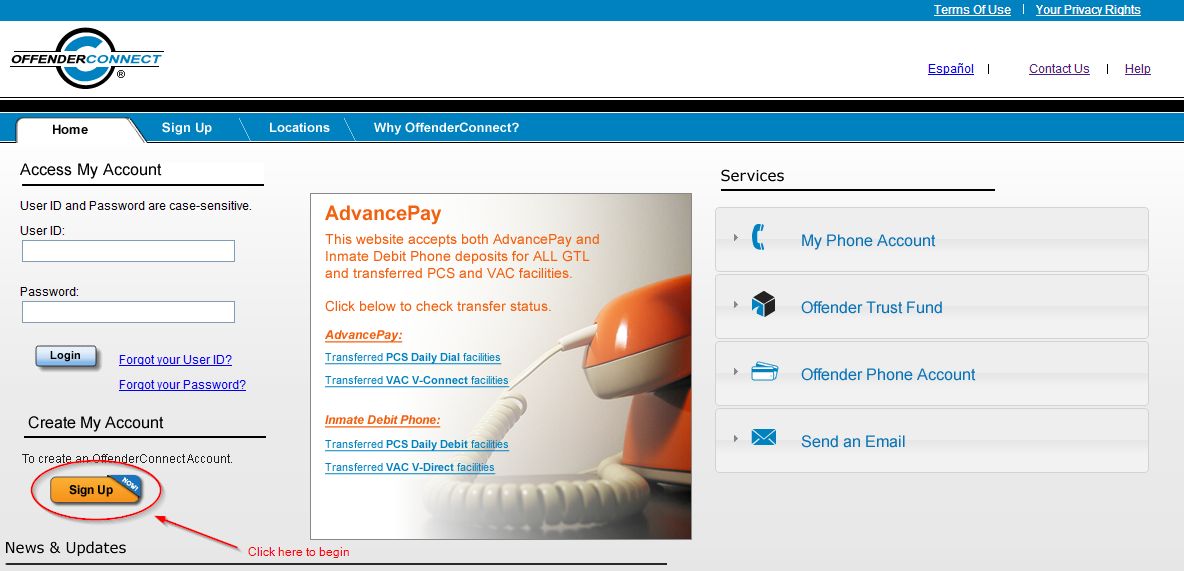 |
| 3. Once you click the “Sign Up” button, you will be taken to the Terms of Use page. If you encounter a warning about secure items, select “Yes” to ensure that only secure, encrypted items are shown. Once you have read the terms of use and agree to them, click the “Accept” button to continue to the Account Setup page. | 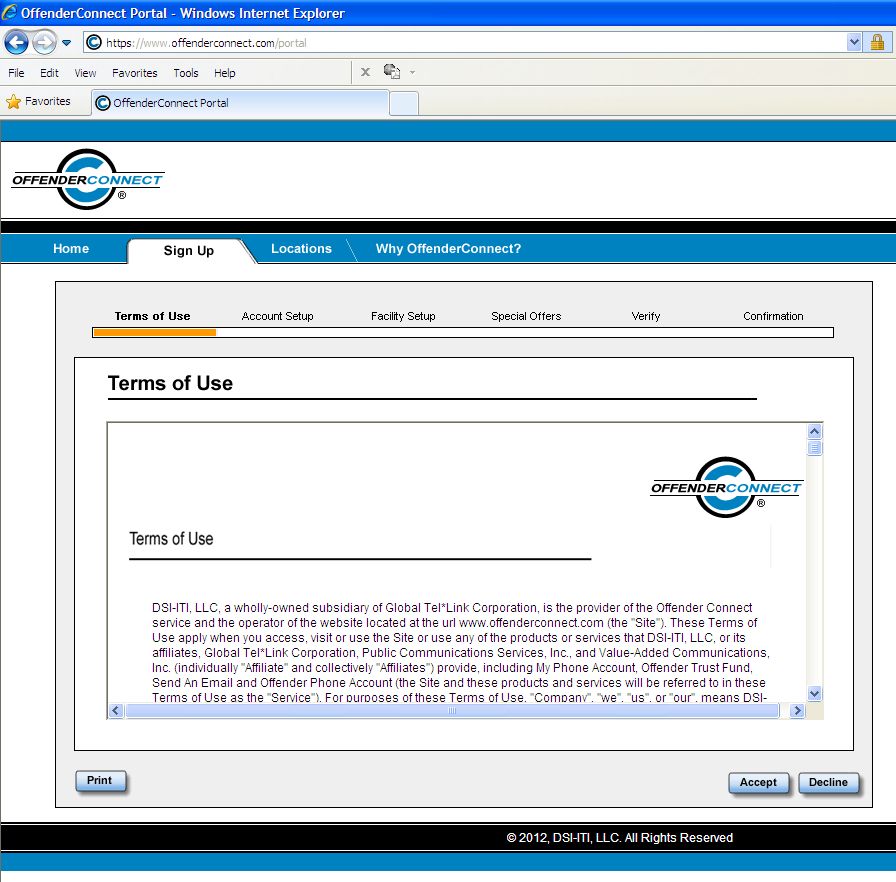 |
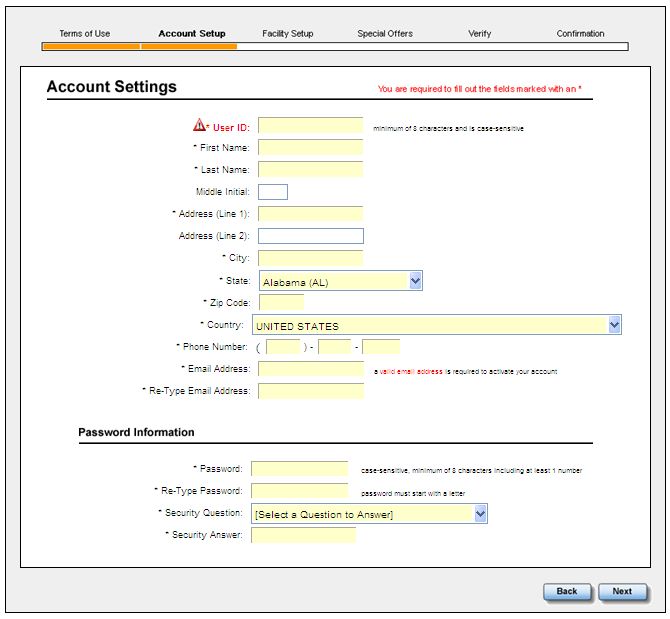
| 4. On the Account Setup page, enter your information – it is very important that your first and last name match what is on your government issued ID (drivers license, etc.) as it may need to match official visitation information for security purposes. For example, if the name on your drivers license is “Patricia”, but you go by the nickname “Pat”, please use “Patricia” in the first name field. Be sure to write down your User ID and password, as this information is not included in any of your confirmation materials and you will need it to log into the system every time you use it.
It is very important to use a valid email address, as you will receive a confirmation email at that address upon the completion of account creation. You will not be able to use the account without a valid email address that you own. If you do not have an email account, here are several providers of free email accounts: |
|
| 5. On the Facility Setup page, select the “SC” for South Carolina and then click “Search.” This will bring up a list of facilities. Select “South Carolina DOC” and then click “Next.” | 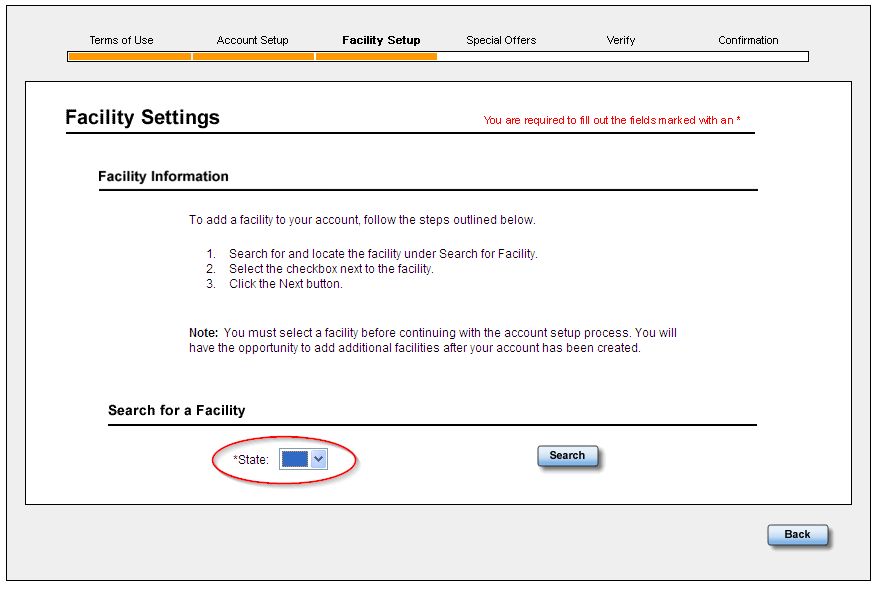 |
| 6. Once you have clicked the selection box for the South Carolina DOC, click the “Next” button. | 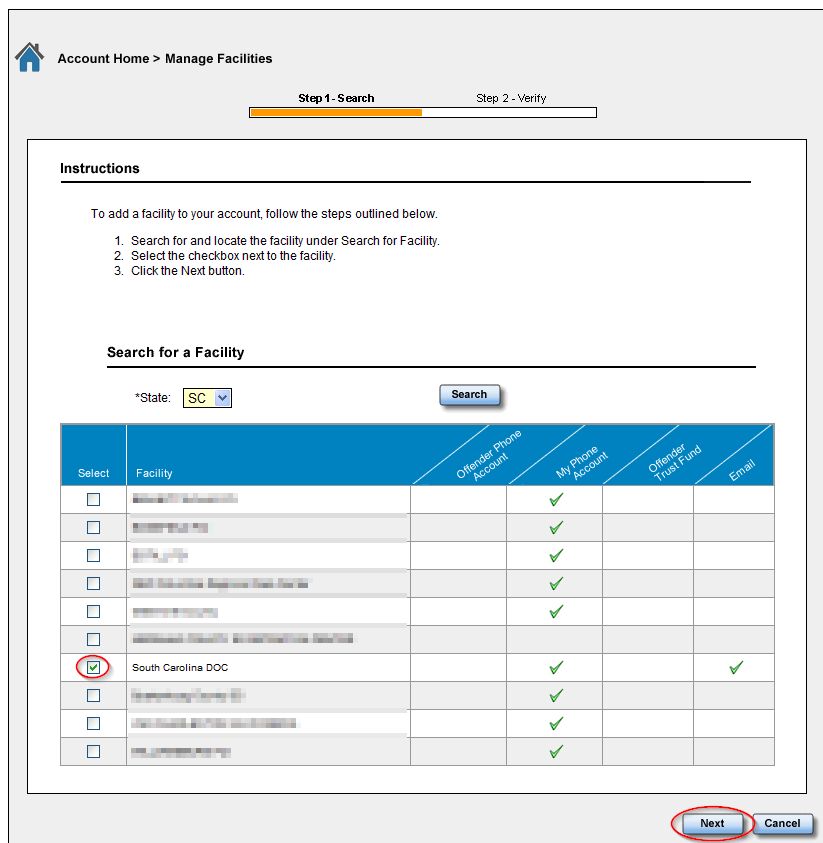 |
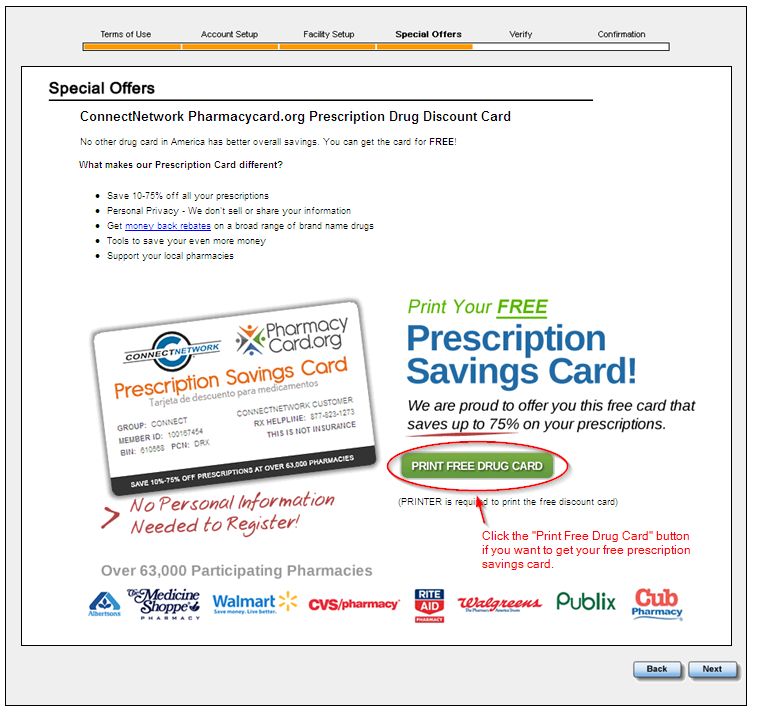
| 7. If you would like to use your free prescription drug card benefit (gives you discounts at over 60,000 participating pharmacies), simply click the green “Print Free Drug Card” link on the page to get your personalized card and print it to your printer. You can also access this from the “Special Offers” section of OffenderConnect if you ever need to reprint your card. These cards can be freely shared with family and friends who want to receive a discount also. Once you are done on this page, click “Next” to proceed. |
 |
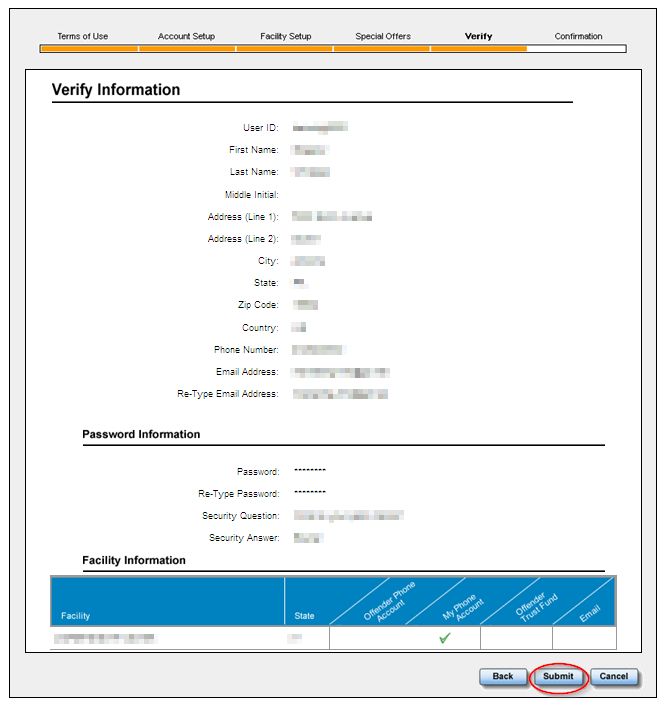
| 8. Confirm that all of your details are correct on the verification page. YOU WILL NOT BE ABLE TO CHANGE MUCH OF THIS INFORMATION AFTER YOU HIT “SUBMIT” SO PLEASE BE SURE THE INFORMATION IS ACCURATE. It is very important that your first and last name match what is on your government issued ID (drivers license, etc.) as it may need to match official visitation information for security purposes. If any of your information is incorrect, please click “Back” and fix the information. Also, be sure that you wrote down your User ID and password, as this information is not included in any of your confirmation materials. Once you are certain that the information on the screen is correct and you have written down your username and password, click the “Submit” button to create your account. |
 |
| 9. You will now be taken to the confirmation page. It provides directions on the next steps to take. You will need to activate your account from the email you provided in step 4, in order to use your account. | 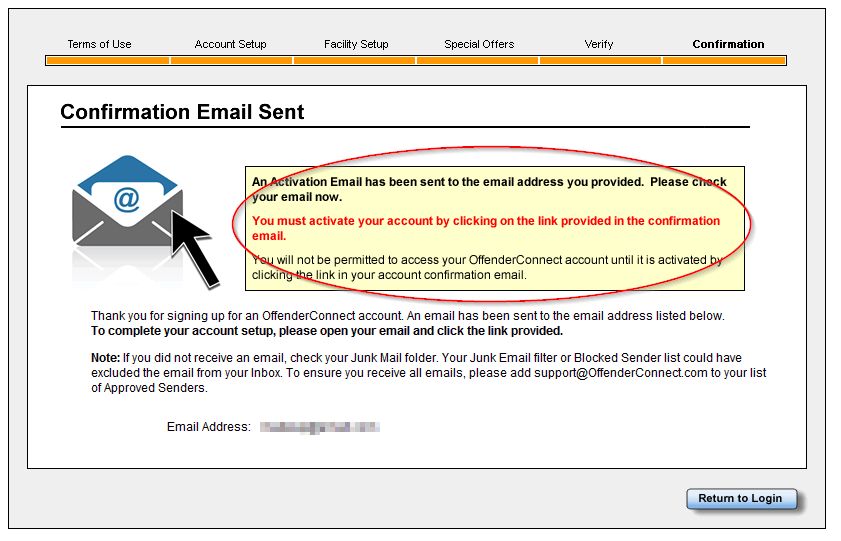 |
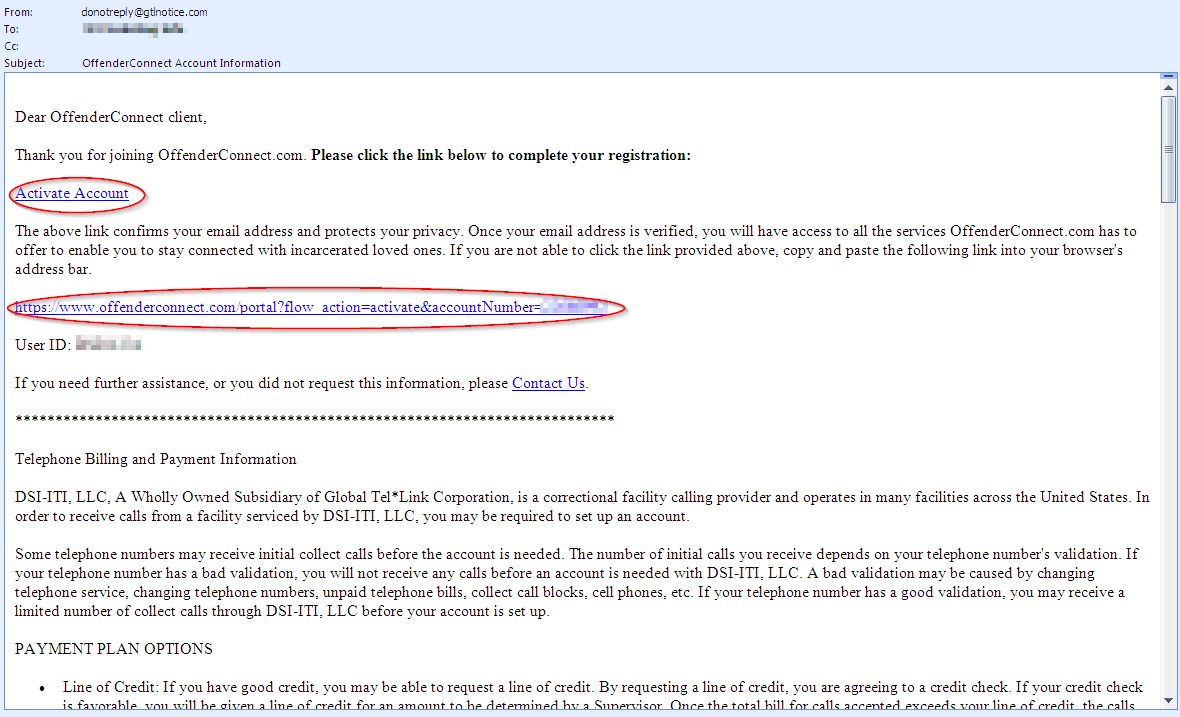
| 10. Find your confirmation email – it will likelybe in either your inbox, or your spam/junk folder in your email. To find it, first go to your inbox to look for the email. If it is not there, go to your spam/junk folder and look for it there. The email subject line should be “OffenderConnect Account Information”, and it should be addressed from [email protected] | 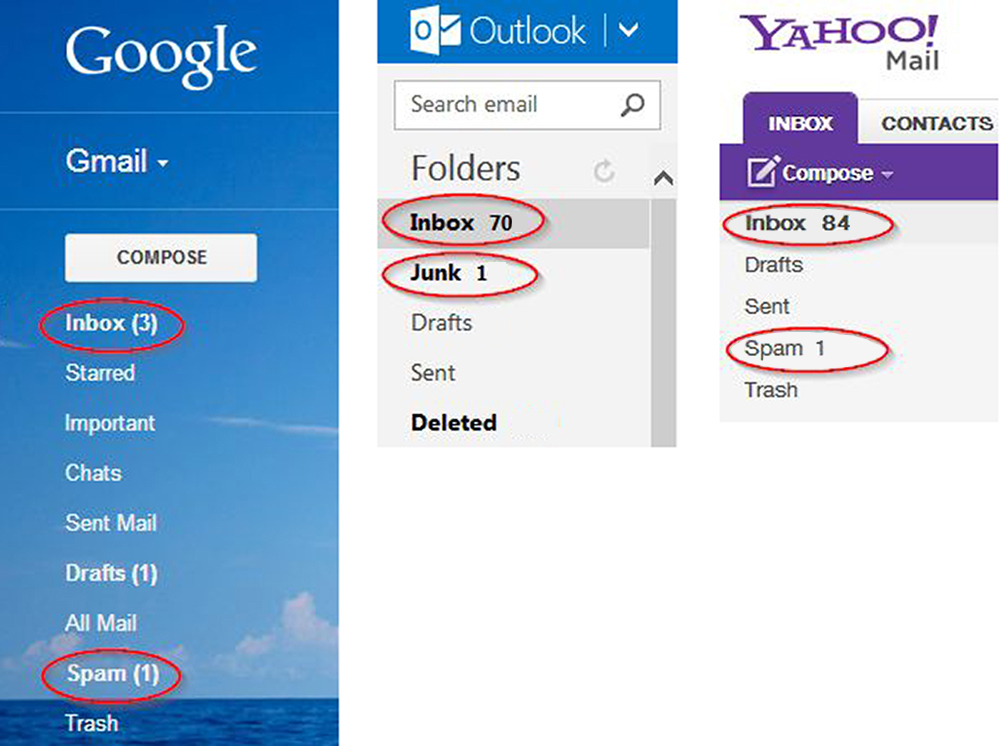 |
| 11. Inside the email, you will see a link to “Activate Account” if you click this, you will be taken to OffenderConnect, and you can then log into the site using the User ID and password you created during the account setup process. If the link does not work for you, you can copy the full URL provided and paste it intothe address bar of your browser, and activate your account that way. Once your account is activated, you can simply visit www.offenderconnect.com thereafter and use your login information to access the site. |
 |
Using OffenderConnect.com
Registered users of OffenderConnect.com who have confirmed their account may log into the OffenderConnect.com website using the instructions below.
| Description | Click to expand |
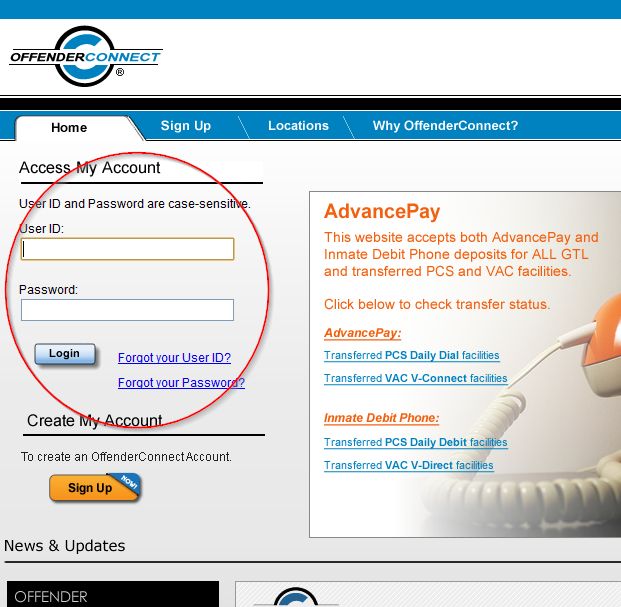
| 1. To access your account, type www.offenderconnect.com in the address bar of your web browser, or click here, and then enter your User ID and password and then click “Login” |
 |
| 2. If the SC DOC is already listed in your account for your facility, proceed to the “Send an E-Message” section, step 1 (hyperlink to this anchor tag). If you have not already setup the SC DOC as your facility, follow the steps below to add your facility prior to proceeding. |
|
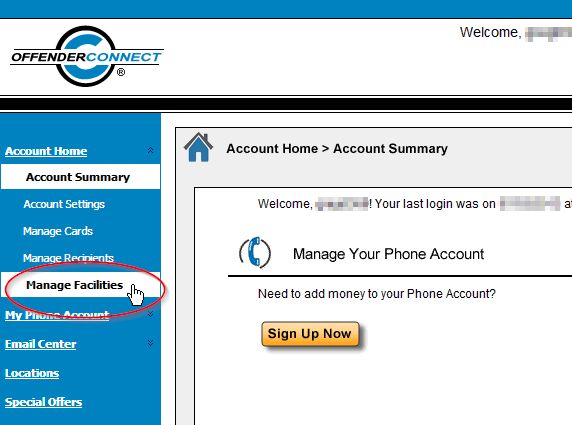
| 3. To set up the SC DOC as your facility, click the “Manage Facilities” link on the left side. |
 |
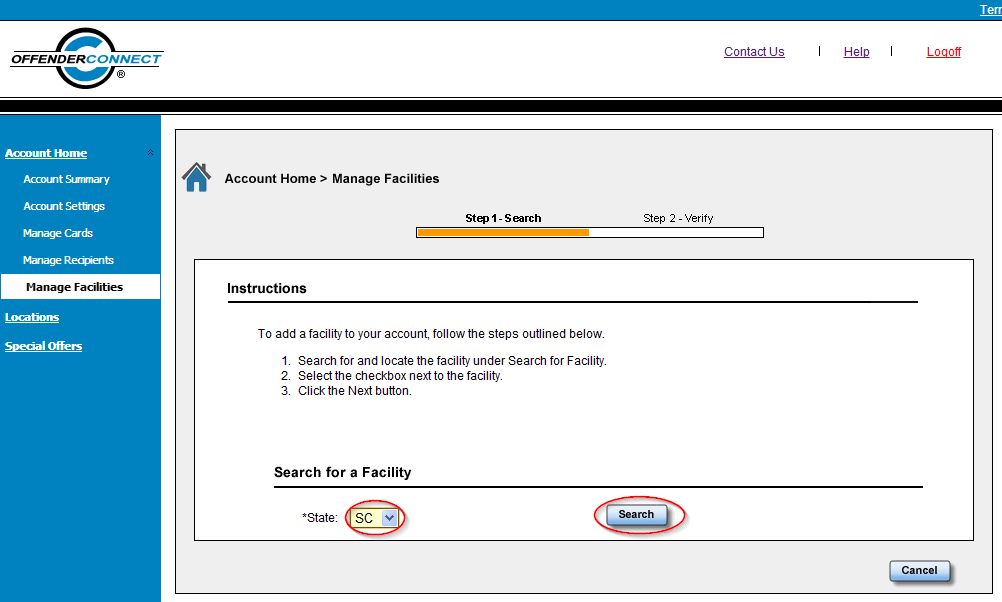
| 4. On the Facility Setup page, select the “SC” for South Carolina and then click “Search”. This will bring up a list of facilities. Select “South Carolina DOC.” |
 |
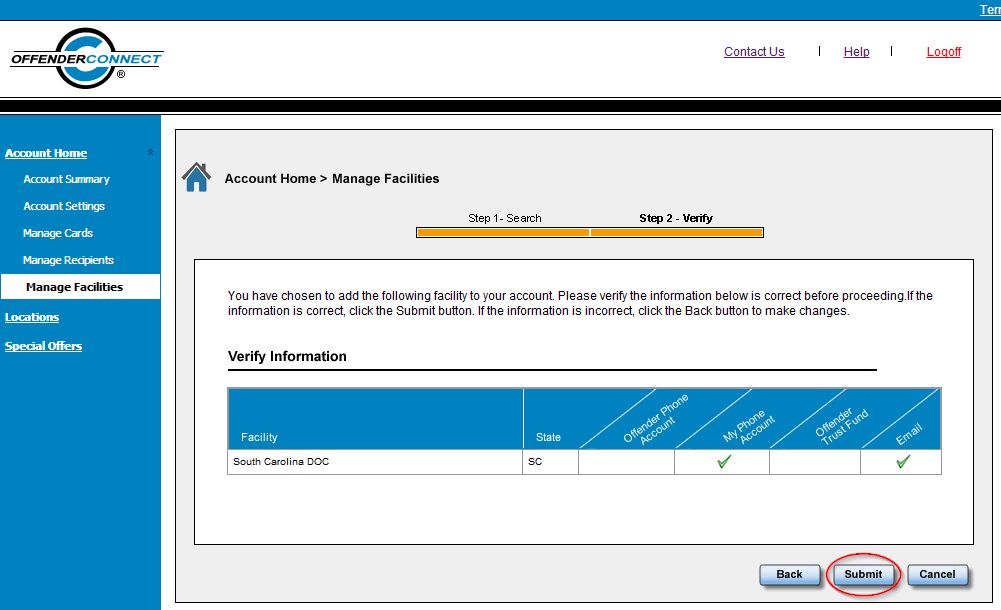
| 5. Once you have clicked the selection box for the South Carolina DOC, and the “Next” button, you will get the verification page. |
|
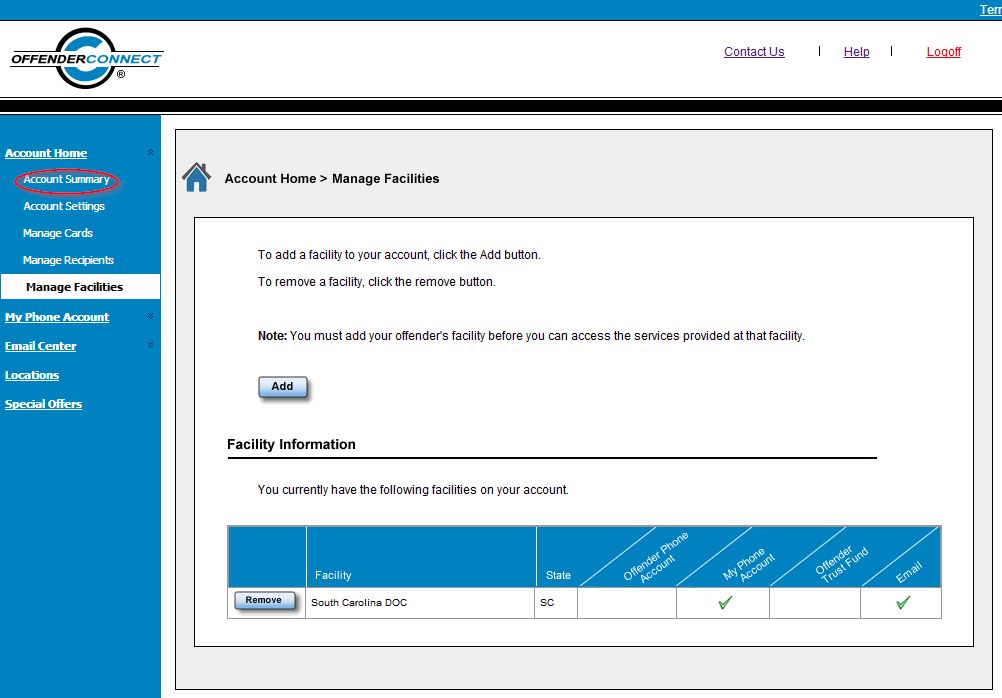
| 6. If everything looks correct, click the “Submit” button. You will then be taken to the Manage Facilities page, and you will now see the South Carolina DOC in your facility list. Click “Submit” to confirm your selection of the SC DOC as your facility. |
 |
| 7. Now, click on the “Account Summary” link to return to the main page where you can select to add money to a phone account, or send an e-message. |
 |
Sending an e-message
| Description | Click to Expand |
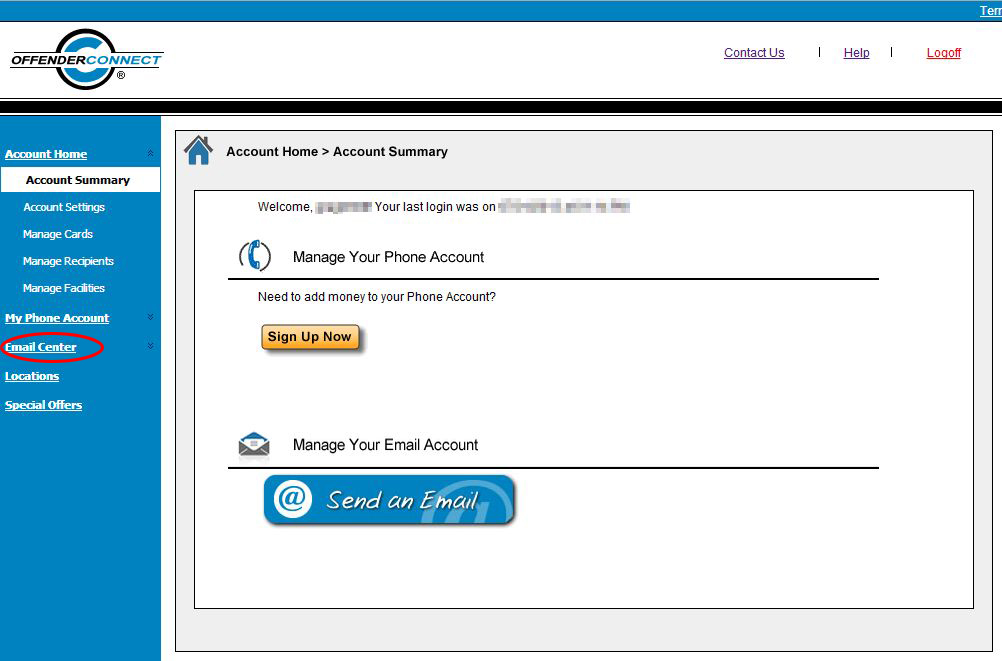
| 1. To send an e-message, click the “Email Center” link on the left, or click on the “Send an Email” button on the account summary in the center of the page. |
 |
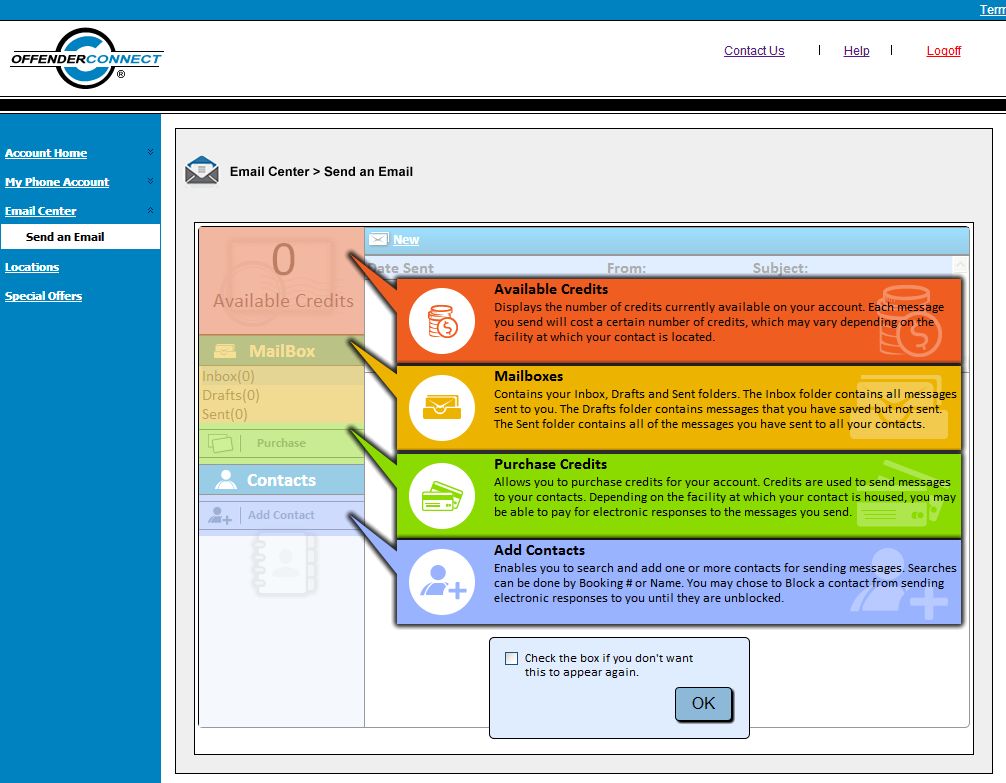
| 2. A summary of the email program will appear. Read the information presented and then click the “OK” button. You will now be able to add contacts and then purchase credits. |
 |
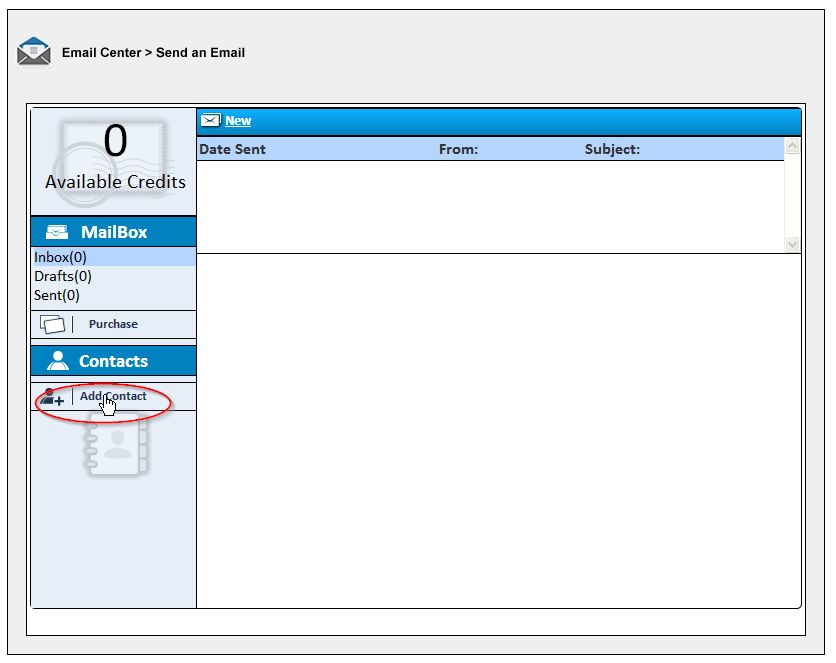
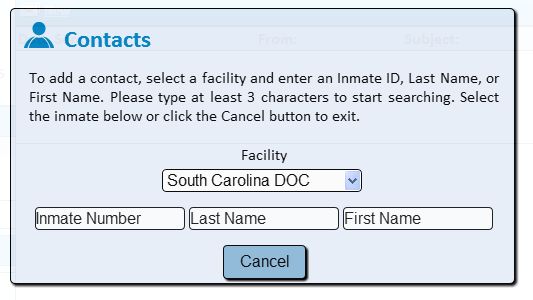
| 3. To add a contact, click on the Add Contacts link and then select “South Carolina DOC” from the dropdown. Once you do, you will be able to input information to help select the inmate. |
 |
| 4. You can use the inmate number and/or the inmate’s first or last name to find an inmate. Type in the information you know (you can use any of the available fields) and it will create a list of matching inmates for you to select from. |
 |
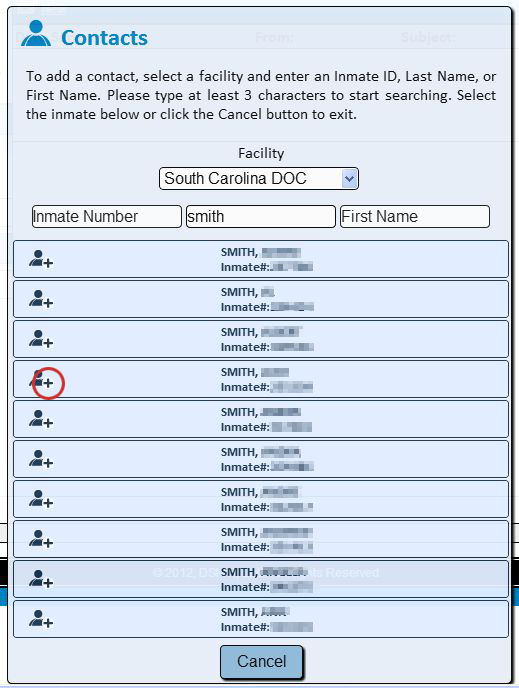
| 5. Once you see the correct inmate, click the plus sign (+) to the left of their name to select them. |
 |
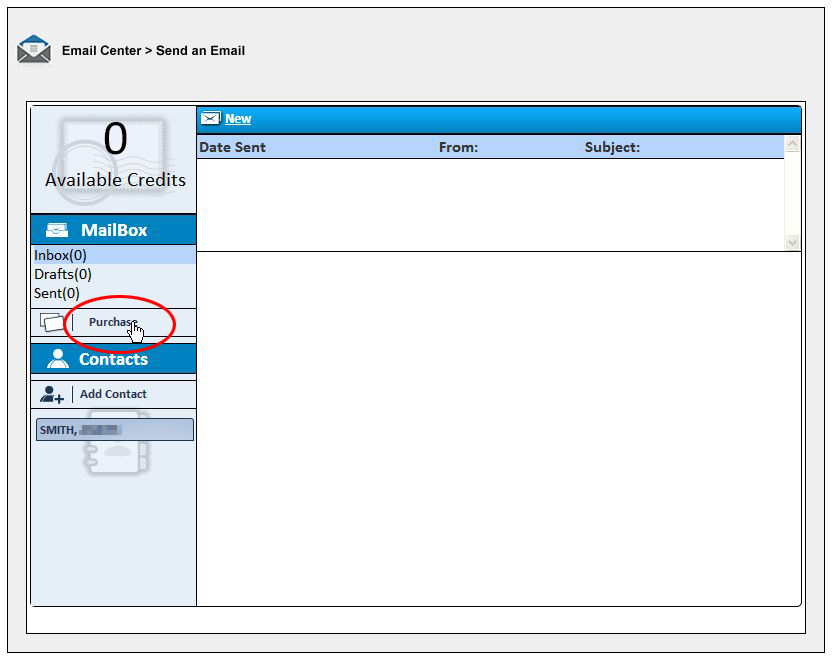
| 6. Once you have added your contact, you are now ready to add credits. To add credits, click on the “Purchase” link. |
 |
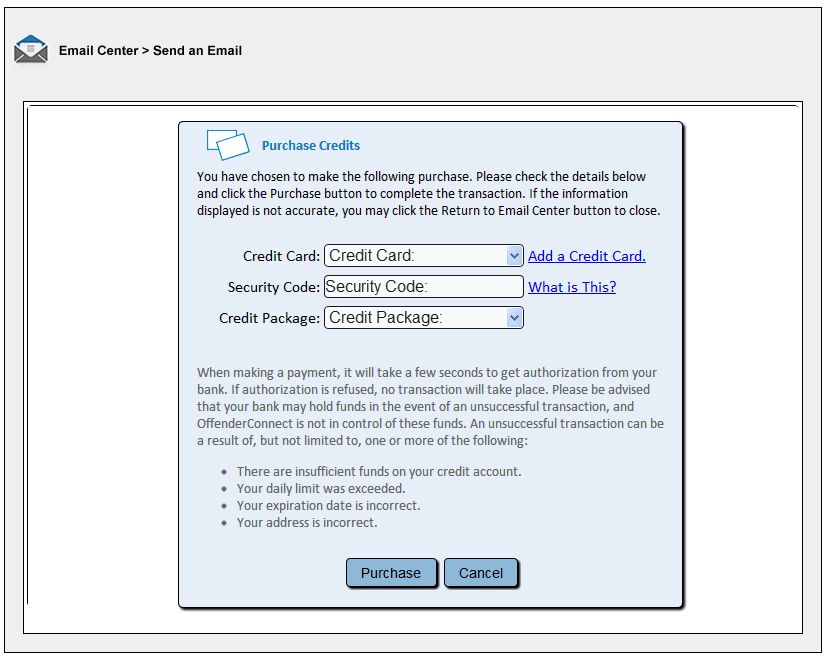
| 7. Once you click the link, the payment information screen will appear. Enter your payment information, and select the credit pack you want. |
 |
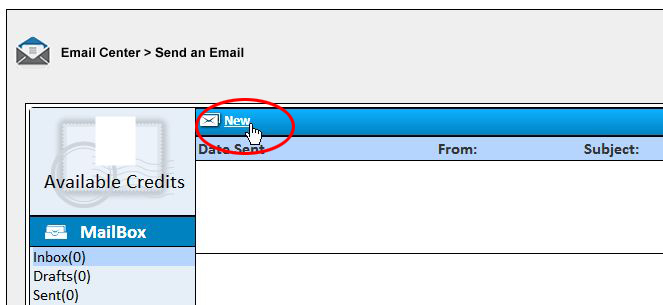
| 8. Once you have purchased credits, you can compose your e-message. To begin, click on the “New” link at the top of the email tool. |
 |
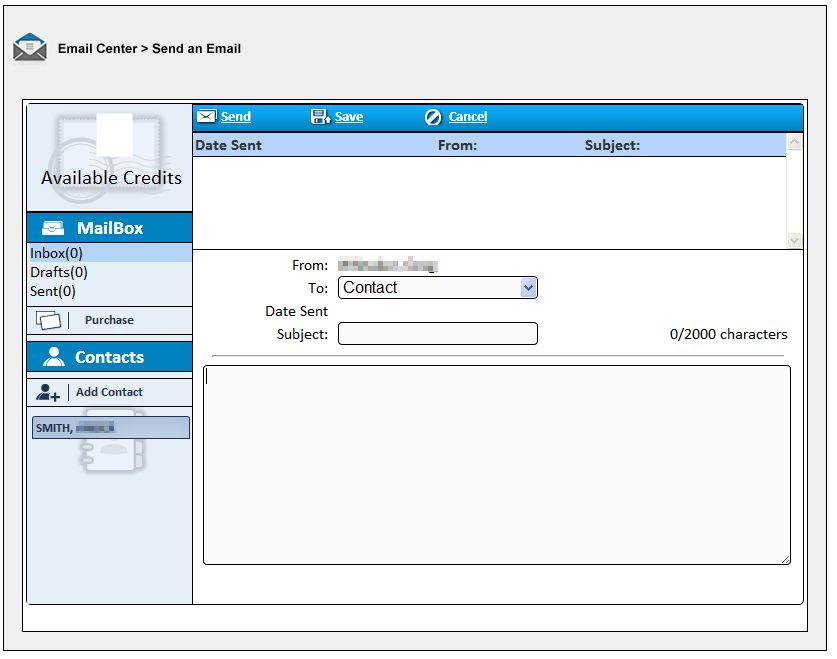
| 9. You are now ready to compose your email. Select the appropriate contact from the drop down menu, and then type your subject line and message. You are allowed up to 2000 characters per message. There is a counter on the right side that will keep track of how many characters you have written. |
 |
| 10. When you are composing your message, if you would like to allow the inmate to reply to you, be sure to indicate the number of replies that you would like to include with your message. Sending replies to the inmate allows them to compose and send messages using the reply credits you supply to them. When your message is complete, click the “Send” link at the top |
 |
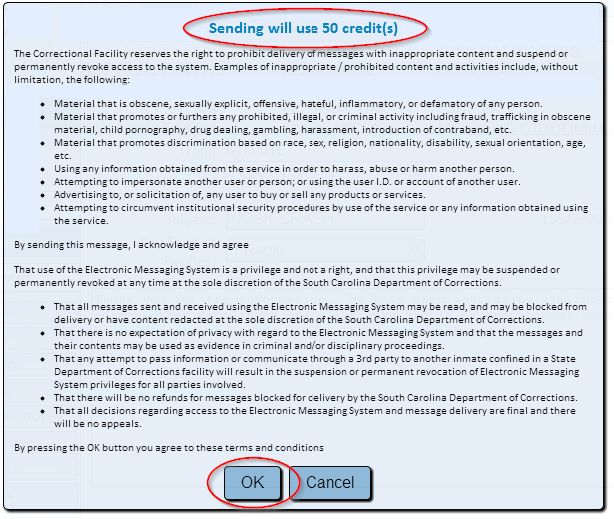
| 11. After you click the “Send” button, you will get the email sending confirmation page. At the top, it will indicate the number of credits being used in the transaction (the total of the credits required to send your message, plus any replies you are sending to the inmate) and the terms of service. You must click “OK” to send your message- if you do not, your message will not be sent. If you do not wish to send your message, click “Cancel”. |
 |
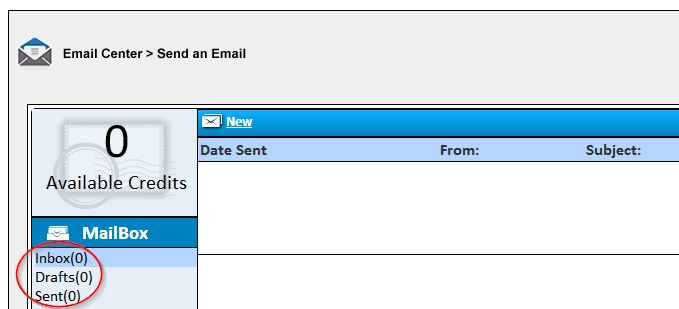
| 12. To view prior messages, you can click on the “Sent” folder. To see saved messages that have not been sent yet, click on the “Drafts” folder. To see messages you have received, click on the “Inbox” folder. |
 |
Return to top
“;s:6:”format”;s:1:”1″;s:7:”animate”;s:1:”1″;}}